
Is your Android phone running slow, lagging, or freezing? Over time, even the best Android smartphones can lose their speed due to unnecessary apps, background processes, and system clutter. The good news is that you don’t need to buy a new phone or install risky apps to fix this problem.
In this complete guide, you’ll learn how to speed up any Android phone easily using safe, proven, and beginner-friendly methods. These tips work on Samsung, Xiaomi, Realme, Vivo, Oppo, OnePlus, and all other Android devices.
Let’s get started.
Why Android Phones Become Slow Over Time
Before fixing the problem, it’s important to understand why Android phones slow down:
- Too many apps running in the background
- Low internal storage space
- Cache and junk files buildup
- Outdated Android version
- Heavy animations and visual effects
- Malware or poorly optimized apps
- Old battery performance affecting CPU speed
Even flagship phones can slow down if they are not maintained properly.
1. Restart Your Phone Regularly (Most Ignored Tip)
Restarting your phone may sound simple, but it’s one of the most effective ways to improve performance.
Why Restart Helps:
- Clears temporary memory (RAM)
- Stops background apps
- Fixes minor system glitches
Tip: Restart your phone at least once every 2–3 days for smooth performance.
2. Free Up Internal Storage Space
Low storage is one of the biggest reasons for slow Android performance.
How to Check Storage:
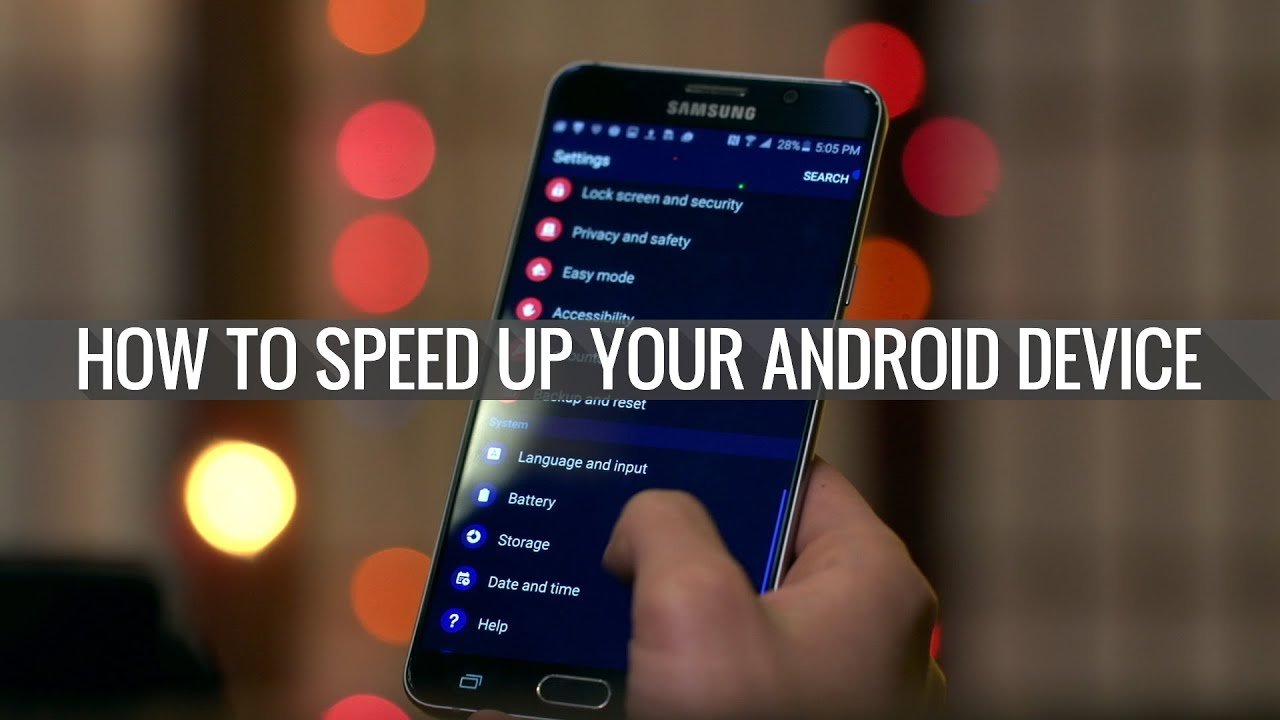
- Go to Settings → Storage
- If storage is above 80% full, your phone will lag
What You Should Delete:
- Unused apps
- Old videos and photos
- Duplicate files
- WhatsApp media backups
- Downloaded APK files
Pro Tip: Keep at least 20–30% storage free for best performance.
3. Clear Cache Files (Safe & Effective)
Cache files help apps load faster, but too much cache can slow down your phone.
How to Clear Cache:
- Open Settings
- Go to Apps
- Select an app
- Tap Storage
- Tap Clear Cache (NOT Clear Data)
Clear cache for apps like:
- Chrome
- YouTube
- Google Play Services
⚠️ Do not use random “cleaner” apps — many harm performance.
4. Uninstall Unused & Heavy Apps
Some apps silently run in the background and consume RAM.
Apps You Should Remove:
- Pre-installed bloatware
- Games you don’t play
- Fake launcher apps
- Unnecessary VPN apps
- Old mod apps
How to Find Heavy Apps:
- Go to Settings → Battery → Usage
- Remove apps using too much battery and memory
Less apps = Faster phone 🚀
5. Disable Background Apps & Services
Many apps keep running even when you don’t use them.
How to Limit Background Apps:
- Settings → Apps → Select App
- Tap Battery
- Choose Restricted or Optimize
Disable Auto-Start Apps:
(Especially on Xiaomi, Realme, Vivo phones)
- Settings → Auto-start → Disable unnecessary apps
6. Turn Off Animations for Instant Speed Boost
Animations look nice but slow down older or mid-range phones.
How to Reduce Animations:
- Go to Settings → About Phone
- Tap Build Number 7 times (Enable Developer Options)
- Open Developer Options
- Set:
- Window animation scale → 0.5x or Off
- Transition animation scale → 0.5x or Off
- Animator duration scale → 0.5x or Off
This alone can make your phone feel twice as fast.
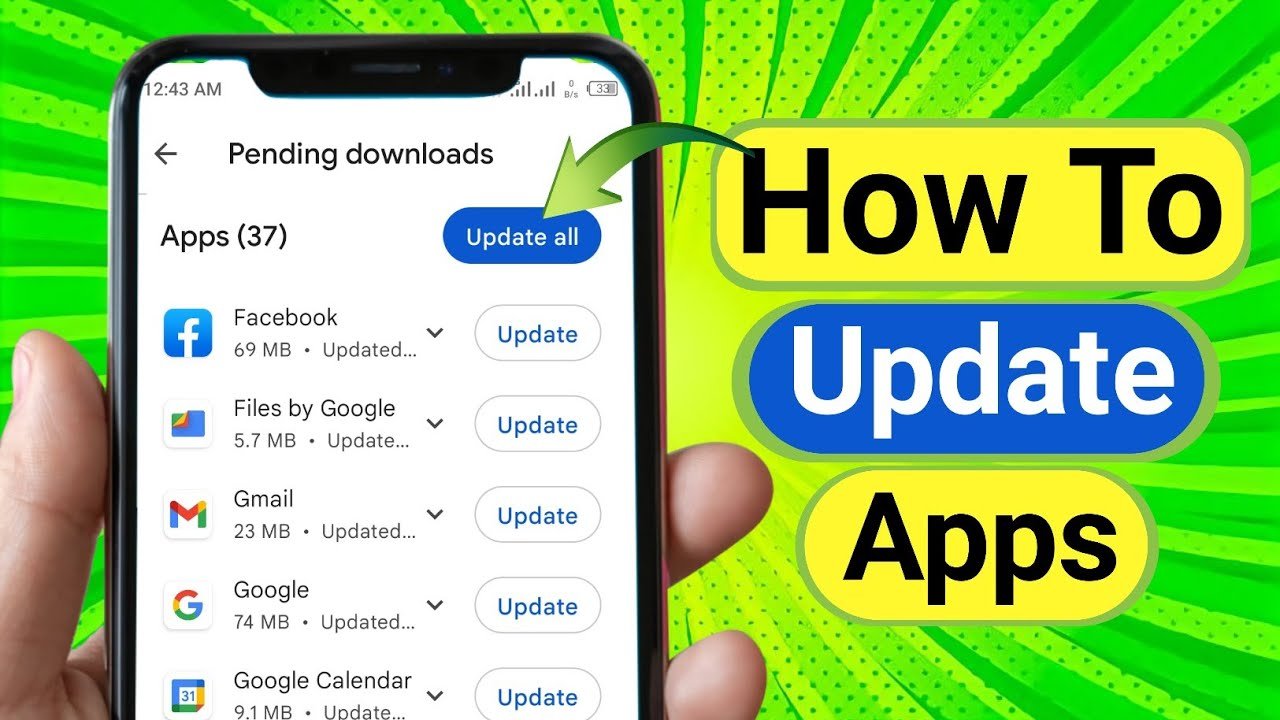
7. Update Your Android System & Apps
Outdated software often causes bugs and performance issues.
Always Keep Updated:
- Android system updates
- Google Play Services
- Installed apps
Go to:
- Settings → Software Update
- Play Store → Update All Apps
Updates often include performance improvements and security fixes.
8. Use Lite Versions of Apps
Heavy apps consume more RAM and storage.
Replace Heavy Apps With Lite Versions:
- Facebook → Facebook Lite
- Messenger → Messenger Lite
- YouTube → YouTube Lite
- Google Go instead of Google App
Lite apps are faster, battery-friendly, and perfect for low-end devices.
9. Check for Malware & Unsafe Apps
Some APK files and mod apps contain malware that slows down phones.
Signs of Malware:
- Phone heats up
- Fast battery drain
- Random ads pop up
- Apps install automatically
What to Do:
- Uninstall suspicious apps
- Use Google Play Protect
- Avoid unknown APK sources
⚠️ Always download apps from trusted websites like apk4r.org.
10. Reduce Widgets & Live Wallpapers
Widgets and live wallpapers use background resources.
Best Practice:
- Use simple wallpapers
- Remove unused widgets
- Avoid live wallpapers on low-end phones
This improves both speed and battery life.
11. Reset App Preferences (Safe Option)
This does not delete data but resets app permissions and defaults.
How to Reset:
- Settings → Apps → Reset App Preferences
This can fix lag caused by misconfigured apps.
12. Factory Reset (Last Option)
If nothing works, a factory reset can make your phone feel brand new.
Before Reset:
- Backup photos, contacts, and files
- Remove Google account
Steps:
- Settings → Reset → Factory Data Reset
⚠️ Use this only as a last solution.
Bonus Tips to Keep Your Android Fast
- Avoid task killer apps
- Don’t use fake RAM booster apps
- Charge with original charger
- Keep phone temperature cool
- Replace old battery if needed
Final Thoughts
Speeding up an Android phone doesn’t require technical skills or paid apps. By following these simple and safe steps, you can improve performance, battery life, and overall user experience.
Whether you use a low-end or flagship Android device, these tips will help keep your phone fast, smooth, and reliable.
For more Android tips, app reviews, and safe APK downloads, stay connected with apk4r.org.
🔎 SEO Keywords Used:
- Speed up Android phone
- Android phone slow fix
- Improve Android performance
- Android lag solution
- Make Android faster
- Speed up old Android phone