
Running out of storage on your Android phone can be frustrating. You may see constant alerts like “Storage Almost Full”, apps stop updating, and your device becomes slow. The good news is that you don’t need to buy a new phone or install risky apps. With a few smart steps, you can free up storage space on Android devices quickly and safely.
In this complete guide, we’ll show you simple, effective, and safe methods to clean your Android storage and improve performance.
Why Android Storage Fills Up So Fast
Before cleaning your phone, it’s important to understand what uses the most space:
- Cached app data
- Large apps and games
- Photos and videos
- Duplicate files
- Downloaded documents
- Unused apps
Identifying these issues helps you clean storage more efficiently.
1. Check Storage Usage on Your Android Phone
Start by checking what’s taking up space:
- Open Settings
- Go to Storage
- View categories like Apps, Images, Videos, and System
This gives you a clear idea of where your storage is being used and what needs cleaning.
SEO Tip: Always monitor storage usage weekly to avoid full storage problems.
2. Clear App Cache (Safe & Effective)
Apps store temporary data (cache) that builds up over time.
Steps to clear cache:
- Go to Settings > Apps
- Select an app
- Tap Storage
- Click Clear Cache
⚠️ Do NOT clear app data unless necessary, as it may delete login details.
Clearing cache regularly can free up 1–3 GB of space without affecting your apps.
3. Delete Unused Apps and Games
Most users install apps once and never use them again.
How to remove unused apps:
- Go to Settings > Apps
- Sort apps by size
- Uninstall apps you haven’t used in 30–60 days
Large games and social media apps consume massive storage. Removing them instantly frees up space.
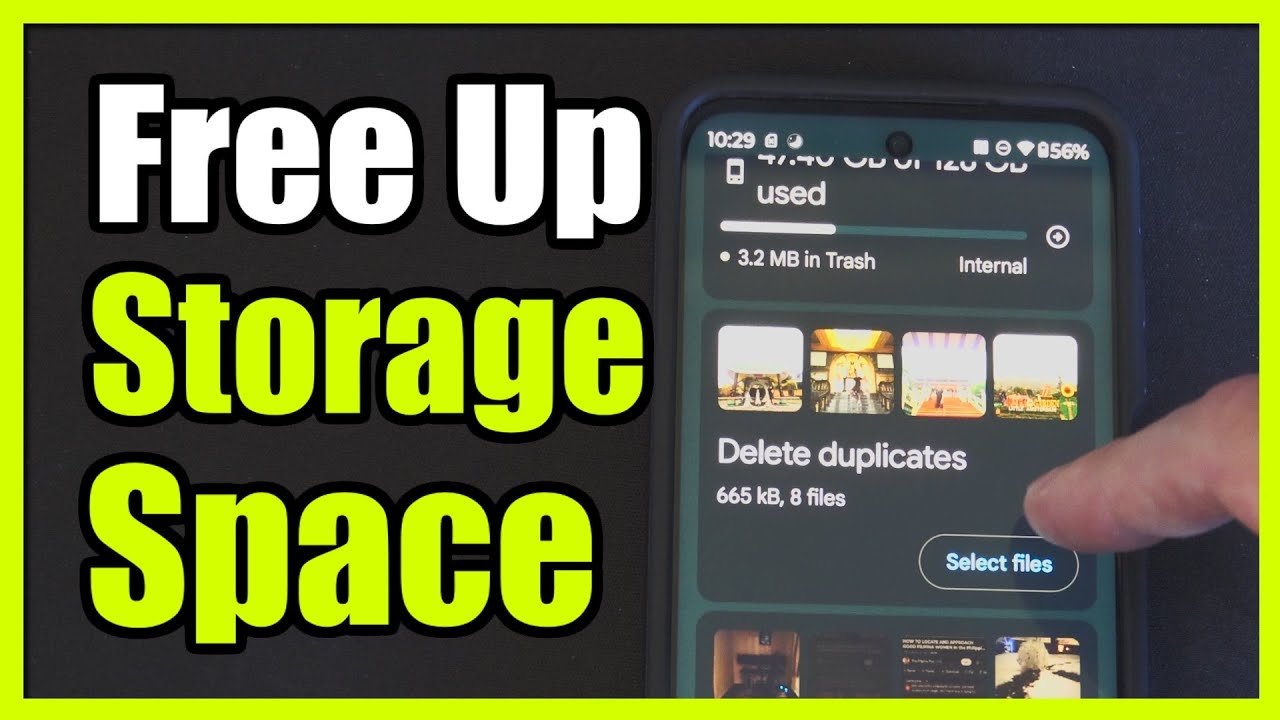
4. Use Google Files to Clean Junk Files
Files by Google is one of the best free tools to clean Android storage.
Features:
- Removes junk files
- Finds duplicate files
- Clears unused APK files
- Suggests apps to uninstall
It’s safe, lightweight, and AdSense-friendly.
5. Move Photos and Videos to Cloud Storage
Photos and videos use the most space.
Best cloud options:
- Google Photos
- Google Drive
- OneDrive
Enable auto-backup and then delete local files safely.
📌 Tip: Use Google Photos > Free Up Space option for instant cleanup.
6. Delete Large Files and Old Downloads
Your Downloads folder often contains:
- Old APK files
- PDFs
- Videos
- ZIP files
Open File Manager > Downloads and delete files you no longer need.
Sorting files by size helps remove the biggest space-eaters quickly.
7. Remove WhatsApp & Telegram Media
Messaging apps store a lot of media automatically.
Clean WhatsApp storage:
- Open WhatsApp
- Go to Settings > Storage and Data
- Tap Manage Storage
- Delete large videos and forwarded files
This alone can free up 2–5 GB of storage.
8. Use Lite Versions of Apps
Lite apps consume less storage and data.
Popular Lite apps:
- Facebook Lite
- Messenger Lite
- Instagram Lite
- YouTube Lite
They work smoothly even on low-storage devices.
9. Delete Duplicate Photos and Videos
Duplicate files waste storage without you noticing.
Use Google Files or Gallery cleanup tools to find and delete duplicates safely.
10. Restart Your Phone Regularly
Restarting your phone clears temporary system files and improves performance.
🔁 Restart your phone once a week for best results.
Final Thoughts
Freeing up storage space on Android devices doesn’t require advanced technical skills. By following these simple and safe methods, you can:
- Gain more storage
- Improve phone speed
- Prevent app crashes
- Enjoy smoother performance
Make it a habit to clean your phone every month, and your Android device will stay fast and clutter-free.
📌 FAQs
Q: Is clearing cache safe?
Yes, clearing cache is completely safe and recommended.
Q: How often should I clean storage?
Once every 2–4 weeks is ideal.
Q: Are cleaner apps safe?
Use trusted apps like Files by Google only.