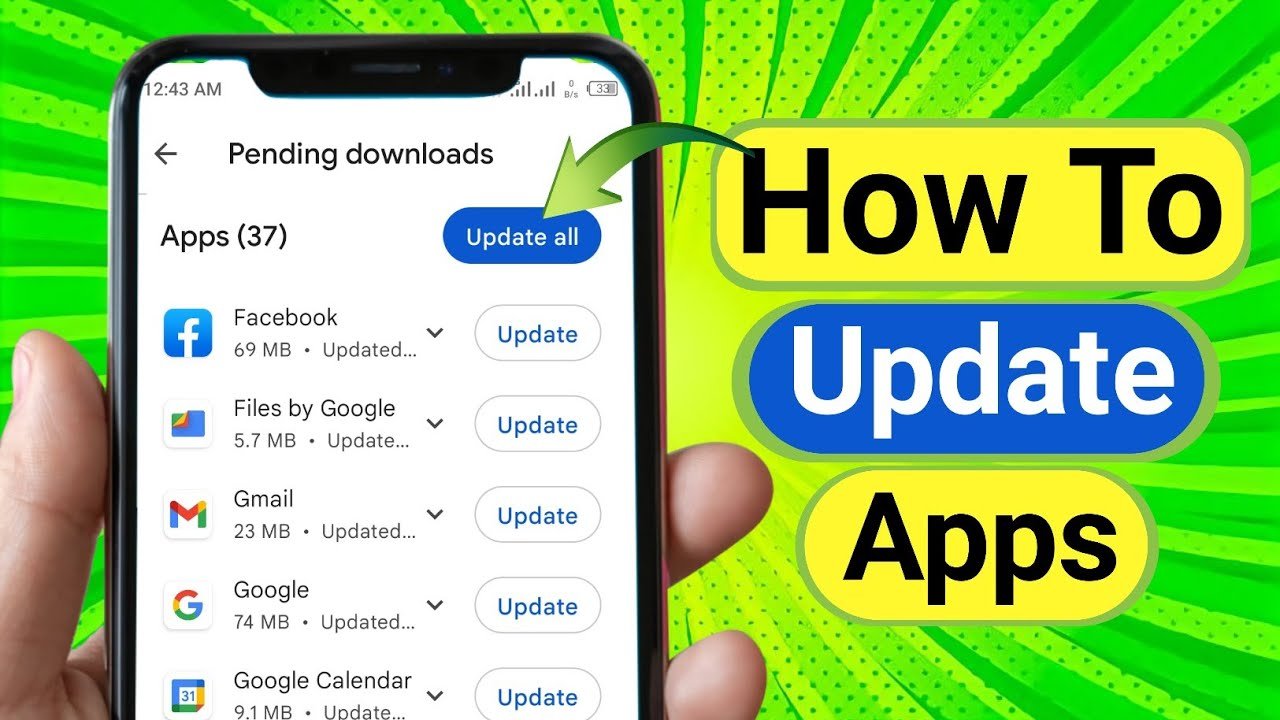

Keeping your Android apps updated is essential for better performance, improved security, and access to the latest features. While most users rely on automatic updates from the Google Play Store, many Android users prefer or need to update Android apps manually.
Manual app updates are especially useful if:
- Google Play Store is not working
- An app is not available in your country
- You want to install an older or specific version
- You use APK files from trusted sources like APK websites
- Your device does not support Play Services
In this complete guide, we will explain how to update Android apps manually, different methods, benefits, risks, and best practices to stay safe.
What Does Manual App Update Mean?
A manual app update means downloading and installing the latest version of an app yourself instead of letting the Play Store update it automatically. This is usually done by downloading an APK file (Android Package Kit) and installing it on your device.
Manual updates give users more control over:
- App versions
- Update timing
- App compatibility
Why Update Android Apps Manually?
There are many reasons why users choose to update apps manually:
1. Play Store Issues
Sometimes the Google Play Store shows errors, slow downloads, or update failures. Manual updates are a quick solution.
2. Early Access to New Features
Manual updates often allow you to install the latest version before Play Store rollout.
3. Region Restrictions
Some apps are not available in certain countries. APK files bypass regional limitations.
4. Older Android Devices
New app updates may not appear on Play Store for older Android versions, but manual APK installation may still work.
5. Control Over App Versions
Some users prefer older versions due to bugs or removed features in new updates.
Things to Check Before Updating Apps Manually
Before you start, keep these important points in mind:
- ✔ Enable Unknown Sources or Install Unknown Apps
- ✔ Download APKs only from trusted websites
- ✔ Check app version compatibility with your Android OS
- ✔ Make sure the app signature matches the installed app
- ✔ Backup important data (recommended)
Method 1: How to Update Android Apps Manually Using APK File
This is the most common and easiest method.
Step 1: Enable Install Unknown Apps
- Open Settings
- Go to Security or Privacy
- Tap Install unknown apps
- Select your browser or file manager
- Enable Allow from this source
(On older Android versions, enable “Unknown Sources”)
Step 2: Download the Latest APK
- Visit a trusted APK website (like apk4r.org)
- Search for the app you want to update
- Check:
- App version number
- Android requirement
- File size
- Download the latest APK file
Step 3: Install the APK
- Open Downloads or File Manager
- Tap the downloaded APK file
- Click Install
- Wait for the installation to complete
The app will update without deleting your data.
Method 2: Update Android Apps Manually Using APK Bundle (XAPK / APKM)
Some apps come in APK Bundle formats instead of a single APK.
What Are APK Bundles?
- XAPK
- APKM
- APKS
These formats contain multiple files for different devices.
Steps:
- Download APKMirror Installer or similar app
- Open the installer app
- Select the APK Bundle file
- Install the app update
This method is safe when used with trusted installers.
Method 3: Manual App Update Without Play Store
If your phone doesn’t support Google services:
- Use APK websites
- Use third-party app stores
- Install apps using file manager
- Update apps via PC using USB
This method is common on custom ROMs and Huawei devices.
How to Check App Version Before Updating
To avoid compatibility issues:
- Go to Settings
- Tap Apps
- Select the app
- Scroll down to App version
Compare it with the version available online before installing.
Is It Safe to Update Android Apps Manually?
Yes, manual app updates are safe if you follow these rules:
Safety Tips:
- Download APKs from trusted sources only
- Avoid mod or cracked apps
- Check app permissions after update
- Scan APK files with antivirus apps
- Don’t install apps asking unnecessary permissions
Never download APKs from unknown or suspicious websites.
Benefits of Manual Android App Updates
✔ Faster access to new features
✔ No Play Store dependency
✔ Works on unsupported devices
✔ Full control over updates
✔ Useful for developers and testers
Common Problems and Fixes
App Not Installed Error
Solution:
- APK version mismatch
- Insufficient storage
- Corrupt file
Parse Error
Solution:
- App not compatible with your Android version
App Crashes After Update
Solution:
- Clear app cache
- Reinstall older stable version
How to Uninstall an App Update (Rollback)
If a new update causes problems:
- Go to Settings > Apps
- Select the app
- Tap Uninstall updates (system apps only)
- Or install an older APK version manually
Manual Update vs Automatic Update
| Feature | Manual Update | Automatic Update |
|---|---|---|
| Control | High | Low |
| Safety | Depends on source | High |
| Speed | Faster | Slower rollout |
| Flexibility | More | Limited |
Best Practices for Manual App Updates
- Update only when needed
- Keep backup of important apps
- Read changelogs before installing
- Avoid beta versions on main device
- Use trusted APK sources like apk4r.org
Final Words
Updating Android apps manually is a powerful option for users who want more control, faster updates, and access to apps not available on the Play Store. When done correctly, manual app updates are safe, easy, and effective.
By following the steps shared in this guide, you can confidently update your Android apps without any issues. Always remember: security comes first, and trusted sources matter.
For the latest APK updates, Android guides, and app reviews, stay connected with apk4r.org