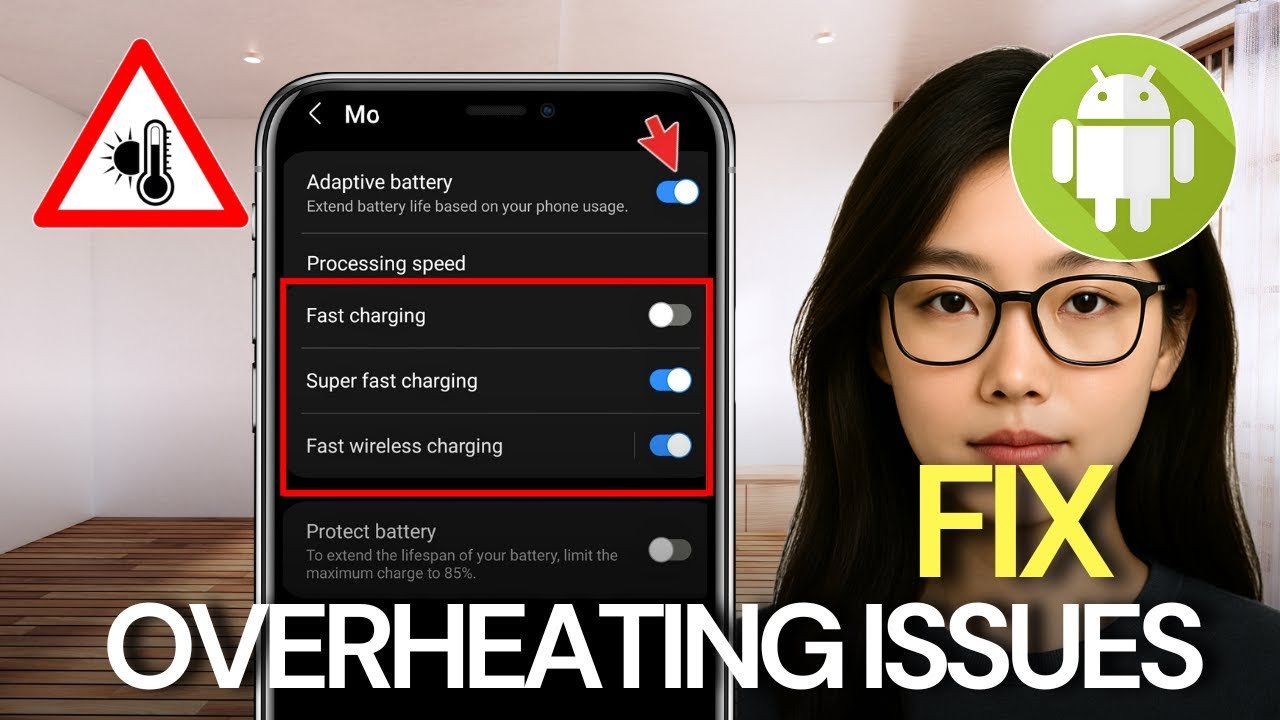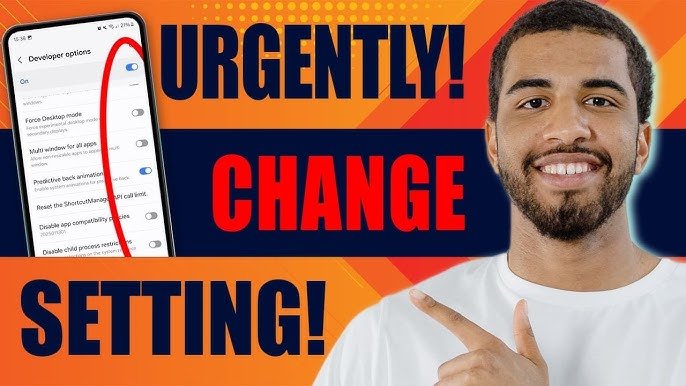

Android smartphones are powerful, flexible, and feature-rich, but over time many users experience slow speed, lag, battery drain, or app crashes. The good news is that you don’t need to buy a new phone or install risky apps to fix these issues. By changing a few Android performance settings, you can significantly improve speed, battery life, and overall smoothness.
In this detailed guide by APK4R, we’ll cover the best Android settings to improve performance, whether you’re using a low-end phone or a flagship device.
1. Update Your Android System Regularly
One of the most overlooked ways to improve Android performance is keeping your device updated.
Why updates matter:
- Fix bugs and performance issues
- Improve system stability
- Enhance security
- Optimize battery usage
How to check:
- Open Settings
- Go to Software Update
- Tap Download & Install
👉 Always install official updates from your device manufacturer.
2. Reduce or Disable Animations (Major Speed Boost)
Android animations look nice but can slow down older or budget phones.
Steps to reduce animations:
- Go to Settings > About Phone
- Tap Build Number 7 times (Enable Developer Options)
- Go back to Settings > Developer Options
- Change:
- Window Animation Scale → 0.5x or Off
- Transition Animation Scale → 0.5x or Off
- Animator Duration Scale → 0.5x or Off
✅ This makes your phone feel much faster instantly.
3. Limit Background Apps & Processes
Apps running in the background consume RAM and CPU, slowing your device.
What to do:
- Open Settings > Apps
- Select unused apps
- Tap Force Stop (carefully)
Additional tip:
In Developer Options, set:
- Background Process Limit → At most 3 or 4 processes
⚠️ Do not restrict essential system apps.
4. Disable or Uninstall Bloatware
Many Android phones come with pre-installed apps you never use.
Benefits of removing bloatware:
- Frees storage space
- Reduces background usage
- Improves battery life
How:
- Go to Settings > Apps
- Select the unwanted app
- Tap Disable or Uninstall
📌 If uninstall is not available, disabling still helps performance.
5. Clear Cached Data (Safe & Effective)
Cache files help apps load faster, but excessive cache can slow your phone.
Steps:
- Open Settings > Storage
- Tap Cached Data
- Clear cache
You can also clear cache app-by-app via:
Settings > Apps > Storage > Clear Cache
❌ Do not tap Clear Data unless necessary.
6. Optimize Storage Space (Keep at Least 20% Free)
Low storage is a major cause of Android lag.
Best practices:
- Delete unused apps
- Remove duplicate photos & videos
- Use cloud storage (Google Photos, Drive)
- Move media to SD card (if available)
Tip:
Go to Settings > Storage > Free Up Space
📈 More free storage = better performance.
7. Turn Off Unnecessary Features
Some features constantly run in the background.
Disable if not needed:
- Bluetooth
- GPS (Location Services)
- NFC
- Hotspot
- Nearby Device Scanning
Location optimization:
Go to Settings > Location > Location Services
- Turn off Wi-Fi scanning
- Turn off Bluetooth scanning
8. Enable Lite or Battery Saver Modes
Most modern Android phones include performance optimization modes.
Options:
- Battery Saver Mode
- Lite Mode
- Performance Optimization
Where to find:
Settings > Battery > Battery Saver
⚡ This limits background activity and boosts smoothness.
9. Use Lightweight Apps (Huge Performance Gain)
Heavy apps consume more RAM and storage.
Examples:
- Facebook → Facebook Lite
- Messenger → Messenger Lite
- YouTube → YouTube Lite / Web version
🔄 Lightweight apps load faster and save battery.
10. Restart Your Phone Weekly
Restarting clears temporary memory and refreshes system processes.
Benefits:
- Fix minor bugs
- Free RAM
- Improve speed
📅 Make it a habit to restart once a week.
11. Disable Auto-Sync for Unused Accounts
Multiple accounts syncing constantly can slow your phone.
Steps:
- Go to Settings > Accounts
- Select unused accounts
- Turn off Auto Sync
Only keep sync enabled for essential accounts like Google.
12. Reduce Widgets & Live Wallpapers
Widgets and live wallpapers look good but drain resources.
Recommendations:
- Use static wallpapers
- Remove unnecessary widgets
- Avoid live wallpapers on low-end devices
🎯 Simple home screens = better performance.
13. Scan for Malware or Problematic Apps
Some apps secretly run in the background and slow down your device.
Signs:
- Phone heating
- Fast battery drain
- Sudden ads
Use Play Protect or a trusted antivirus from Play Store.
14. Reset App Preferences (Optional)
If apps misbehave after updates:
- Go to Settings > Apps
- Tap Reset App Preferences
This won’t delete data but resets permissions.
15. Factory Reset (Last Option)
If your phone is extremely slow:
Before reset:
- Backup important data
- Sign out of Google account
Steps:
Settings > System > Reset > Factory Data Reset
⚠️ This should be your last solution.
Final Thoughts
Improving Android performance doesn’t require advanced technical knowledge. By adjusting the right Android settings, you can enjoy faster speed, better battery life, and smoother multitasking.
At APK4R.org, our goal is to provide safe, helpful, and reliable Android tips without risky mods or fake boosters. Apply these settings carefully, and your phone will feel almost new again.