
Slow WiFi on a phone can be extremely frustrating, especially when you are trying to stream videos, download apps, browse social media, or work online. Many smartphone users experience slow internet speeds at some point, even when the WiFi network itself seems fine. The good news is that there are several simple ways to fix slow WiFi on phone without needing advanced technical skills.
In this complete guide, you will learn the most effective methods to fix slow WiFi on phone, improve internet speed, and enjoy smoother browsing on your smartphone.
Why Your Phone WiFi Is Slow
Before trying solutions, it is important to understand why WiFi becomes slow on smartphones. Several factors can affect wireless internet performance.
Common reasons include:
- Weak WiFi signal
- Router issues
- Too many connected devices
- Background apps using internet
- Outdated phone software
- Network congestion
- Incorrect WiFi settings
Identifying the cause helps you apply the right solution to fix slow WiFi on phone quickly.
1. Restart Your Phone
One of the simplest solutions is restarting your device. Many temporary system issues can slow down WiFi performance.
Steps:
- Press and hold the power button.
- Tap Restart or Reboot.
- Wait for the phone to turn back on.
Restarting clears temporary bugs and refreshes network connections, which often helps fix slow WiFi on phone instantly.
2. Restart Your WiFi Router
Sometimes the issue is not with your phone but with the router.
How to restart the router:
- Turn off the router.
- Wait about 30 seconds.
- Turn it back on.
- Reconnect your phone to WiFi.
Router restarts refresh the network and can significantly fix slow WiFi on phone.
3. Move Closer to the Router
Distance plays a big role in WiFi speed. The farther you are from the router, the weaker the signal becomes.
Tips to improve signal strength:
- Stay in the same room as the router
- Avoid thick walls and metal obstacles
- Keep the router in a central location
A stronger signal can immediately fix slow WiFi on phone and improve connection stability.
4. Turn WiFi Off and On Again
Refreshing the WiFi connection can solve minor network glitches.
Steps:
- Open Settings
- Tap WiFi
- Turn WiFi off
- Wait 10 seconds
- Turn WiFi on again
Reconnect to the network and check if the speed improves.
5. Forget and Reconnect to the WiFi Network
If your saved network settings are corrupted, reconnecting can help.
How to do it:
- Go to Settings
- Tap WiFi
- Select your network
- Tap Forget Network
- Reconnect by entering the password again
This method often helps fix slow WiFi on phone by resetting the connection configuration.
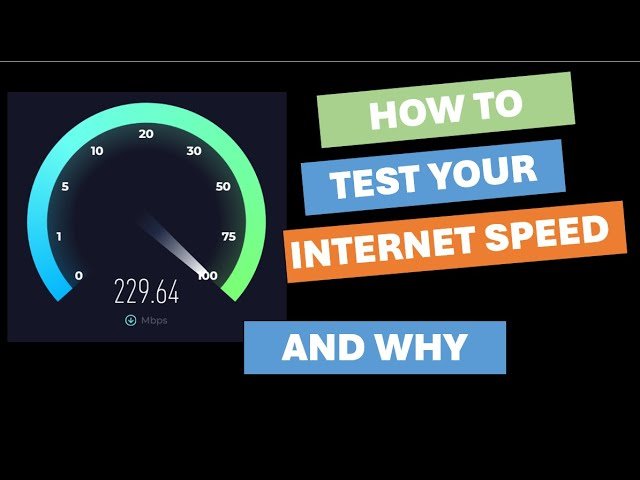
6. Check Internet Speed
Before assuming the problem is with your phone, check the actual internet speed.
You can use speed test apps to verify your connection.
If the internet speed is slow on all devices, the issue may be with your internet provider.
7. Close Background Apps
Many apps continue to use internet data in the background. This can slow down WiFi performance on your phone.
To close apps:
- Open the Recent Apps screen
- Swipe away apps you are not using
Reducing background activity helps fix slow WiFi on phone and frees up bandwidth.
8. Update Your Phone Software
Outdated software can cause network performance issues.
To update your phone:
- Go to Settings
- Tap System
- Select Software Update
- Install any available updates
Manufacturers often release updates that improve connectivity and help fix slow WiFi on phone.
9. Disable VPN Services
VPN apps can slow down internet speed because they route traffic through different servers.
If you are using a VPN:
- Open the VPN app
- Disconnect the VPN
- Test your WiFi speed again
Disabling VPN services may significantly fix slow WiFi on phone.
10. Reset Network Settings
If none of the above solutions work, resetting network settings can help.
Steps:
- Open Settings
- Tap System
- Select Reset Options
- Tap Reset WiFi, Mobile & Bluetooth
This will remove saved networks but can effectively fix slow WiFi on phone.
11. Reduce Connected Devices
If many devices are connected to the same network, internet speed may slow down.
Examples include:
- Smart TVs
- Laptops
- Gaming consoles
- Tablets
Disconnecting unnecessary devices can improve speed and fix slow WiFi on phone.
12. Change WiFi Band (2.4GHz vs 5GHz)
Modern routers provide two frequency bands.
2.4 GHz
- Longer range
- Slower speed
5 GHz
- Faster speed
- Shorter range
If your phone supports 5GHz, connecting to it may help fix slow WiFi on phone.
13. Clear Cache on Your Phone
Temporary cached data can sometimes affect network performance.
Steps (Android):
- Open Settings
- Tap Storage
- Select Cached Data
- Clear cache
Cleaning cache can help improve overall phone performance and fix slow WiFi on phone.
14. Remove WiFi Interference
Certain devices can interfere with WiFi signals.
Common sources include:
- Microwave ovens
- Bluetooth devices
- Cordless phones
- Other routers nearby
Keeping the router away from such devices can help fix slow WiFi on phone.
15. Upgrade Your Router
If your router is old, it may not support modern WiFi speeds.
New routers provide:
- Faster connectivity
- Better coverage
- Improved device handling
Upgrading your router may permanently fix slow WiFi on phone and improve internet performance across all devices.
Extra Tips to Improve Phone WiFi Speed
Here are some additional tips to boost internet performance:
- Keep your phone updated
- Avoid downloading large files while browsing
- Use high-speed internet plans
- Place your router in an open area
- Restart router weekly
These simple habits can help prevent slow internet problems in the future.
When to Contact Your Internet Provider
If your WiFi is still slow after trying all the solutions above, the issue may be with your internet service provider.
Contact your ISP if you experience:
- Constant slow speeds
- Frequent connection drops
- Network outages
- Router compatibility problems
Your provider may need to reset the network or upgrade your connection.
Final Thoughts
Experiencing slow internet on your smartphone can be frustrating, but most issues can be solved with simple troubleshooting. By restarting your phone, reconnecting to the network, updating software, and optimizing WiFi settings, you can easily fix slow WiFi on phone and enjoy a faster online experience.
Regularly maintaining your phone and router will also prevent connectivity issues in the future. If problems continue, checking with your internet provider may be the best solution.
By following the tips in this guide, you should now be able to fix slow WiFi on phone and make the most of your wireless internet connection.