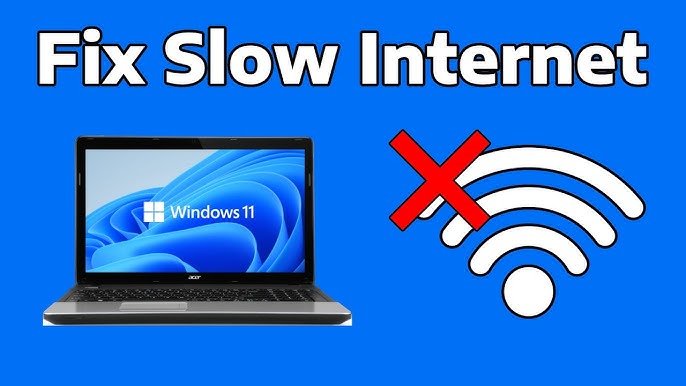

A slow internet connection at home can be extremely frustrating, especially when you’re working remotely, streaming videos, playing online games, or using smart devices. Buffering, lag, and sudden disconnections can waste your time and affect productivity.
If you’re wondering how to fix a slow internet connection at home, this complete guide will help you diagnose the problem and apply practical solutions to improve your internet speed instantly.
Why Is My Internet So Slow at Home?
Before fixing the issue, it’s important to understand why your internet is slow. Common reasons include:
- Weak Wi-Fi signal
- Too many connected devices
- Outdated router or modem
- ISP (Internet Service Provider) issues
- Background apps using bandwidth
- Poor router placement
- Old cables or hardware
Identifying the cause will help you apply the correct solution.
1. Check Your Internet Speed First
The first step is to test your current internet speed.
How to Check Internet Speed:
- Use online tools like Speedtest or Fast.com
- Run the test multiple times during different hours
- Compare results with the speed promised by your ISP
If the speed is much lower than expected, the issue may be internal or related to your ISP.
2. Restart Your Router and Modem
This is the simplest and most effective fix.
Why Restarting Helps:
- Clears temporary memory
- Fixes minor software bugs
- Refreshes network connection
How to Restart Properly:
- Turn off the router and modem
- Unplug them from power
- Wait 30–60 seconds
- Plug them back in and turn on
Many slow internet issues are fixed with this basic step.
3. Place Your Router in the Right Location
Router placement plays a major role in internet speed.
Best Router Placement Tips:
- Place router in the center of your home
- Keep it elevated (on a shelf or table)
- Avoid walls, metal objects, and appliances
- Keep it away from microwaves and cordless phones
A poorly placed router can weaken your Wi-Fi signal significantly.
4. Secure Your Wi-Fi Network
An unsecured Wi-Fi network allows neighbors or hackers to steal your bandwidth.
How to Secure Your Internet:
- Use WPA2 or WPA3 encryption
- Change default Wi-Fi name and password
- Disable WPS if not needed
- Check connected devices regularly
Too many unauthorized users can slow down your internet dramatically.
5. Disconnect Unused Devices
Every connected device uses internet bandwidth.
Common Bandwidth-Hungry Devices:
- Smart TVs
- Mobile phones
- Tablets
- Smart cameras
- Gaming consoles
What You Should Do:
- Disconnect unused devices
- Turn off Wi-Fi on idle devices
- Use device priority settings (QoS)
Reducing the load improves speed for active users.
6. Update Router Firmware
Outdated firmware can cause performance issues.
Why Firmware Updates Matter:
- Improve speed and stability
- Fix security vulnerabilities
- Enhance compatibility with new devices
How to Update Router Firmware:
- Log in to your router’s admin panel
- Check for firmware updates
- Install the latest version
This simple step can significantly boost internet performance.
7. Switch Wi-Fi Frequency Band (2.4GHz vs 5GHz)
Most modern routers support dual-band Wi-Fi.
2.4GHz Band:
- Longer range
- Slower speed
- More interference
5GHz Band:
- Faster speed
- Shorter range
- Less interference
Use 5GHz for speed and 2.4GHz for coverage depending on your needs.
8. Reduce Background Internet Usage
Many apps use internet in the background without your knowledge.
Apps That Consume Data:
- Cloud backups
- Auto updates
- Streaming apps
- Torrent clients
How to Fix This:
- Disable auto updates
- Pause cloud syncing
- Close unused apps
- Schedule downloads at night
Controlling background usage frees bandwidth instantly.
9. Use Ethernet Cable Instead of Wi-Fi
Wi-Fi is convenient but not always reliable.
Benefits of Ethernet:
- Faster speed
- Lower latency
- More stable connection
If possible, connect your PC, laptop, or gaming console directly to the router using an Ethernet cable.
10. Change DNS Settings
DNS servers affect how fast websites load.
Best Free DNS Servers:
- Google DNS (8.8.8.8, 8.8.4.4)
- Cloudflare DNS (1.1.1.1, 1.0.0.1)
- OpenDNS
Switching DNS often improves browsing speed and security.
11. Check for Malware and Viruses
Malware can secretly use your internet.
Signs of Malware:
- Sudden speed drop
- Unusual data usage
- Pop-ups and ads
Solution:
- Use trusted antivirus software
- Scan all connected devices
- Remove suspicious apps
A clean system ensures better internet performance.
12. Upgrade Your Router or Modem
Old hardware may not support modern speeds.
When to Upgrade:
- Router is older than 4–5 years
- Doesn’t support Wi-Fi 5 or Wi-Fi 6
- Frequent disconnections
Investing in a modern router can dramatically improve speed and coverage.
13. Contact Your Internet Service Provider (ISP)
If nothing works, the problem may be external.
What to Ask Your ISP:
- Line issues
- Network congestion
- Speed throttling
- Plan upgrade options
Sometimes ISP maintenance or technical faults cause slow internet.
14. Upgrade Your Internet Plan
If your usage has increased, your plan may be insufficient.
Consider Upgrading If:
- Multiple users stream HD/4K content
- You work from home
- You use cloud services
- Online gaming is frequent
Higher bandwidth ensures smoother performance for all users.
15. Use a Wi-Fi Extender or Mesh System
For large homes, one router may not be enough.
Best Solutions:
- Wi-Fi extenders
- Mesh Wi-Fi systems
These devices eliminate dead zones and improve coverage across your home.
Final Thoughts
A slow internet connection at home doesn’t always mean you need a new plan. In most cases, simple fixes like restarting your router, optimizing Wi-Fi placement, securing your network, and reducing background usage can significantly improve speed.
By following this step-by-step guide, you can enjoy faster, more stable, and reliable internet at home without technical expertise.
For more tech tips, how-to guides, and internet solutions, keep visiting apk4r.org 🚀
🔍 SEO Keywords Used:
- how to fix slow internet connection at home
- slow internet fix
- internet speed improvement tips
- Wi-Fi slow problem solution
- boost home internet speed