
In today’s digital world, our smartphones store almost everything important — photos, videos, contacts, documents, apps, messages, and even banking information. Losing this data due to phone damage, theft, malware, or accidental deletion can be extremely stressful. That’s why learning how to take backup of Android data safely is no longer optional — it’s essential.
In this complete guide, you’ll learn different safe methods to back up Android data, best backup tools, cloud vs local backup comparison, and expert tips to keep your personal information secure. Whether you are a beginner or an advanced user, this guide will help you protect your Android data effectively.
Why Is Android Data Backup Important?
Before jumping into the methods, let’s understand why backing up Android data is so important:
- 📱 Protects data from accidental deletion
- 🔐 Saves information in case of phone theft or loss
- 🦠 Prevents data loss from malware or virus attacks
- 🔄 Makes phone upgrades easy
- ⚙️ Restores data after factory reset
Many users realize the importance of backup only after losing data. Don’t make that mistake.
Types of Android Data You Should Back Up
A complete Android backup includes:
- Contacts
- Photos & videos
- WhatsApp chats
- SMS & call logs
- Apps & app data
- Documents & downloads
- Device settings
Now let’s explore safe and reliable ways to back up Android data.
Method 1: Backup Android Data Using Google Account (Recommended)
Google provides a built-in backup system that is free, secure, and easy.
What Google Backup Includes
- Contacts
- App data
- SMS messages
- Call history
- Device settings
- Wi-Fi passwords
Steps to Enable Google Backup
- Open Settings on your Android phone
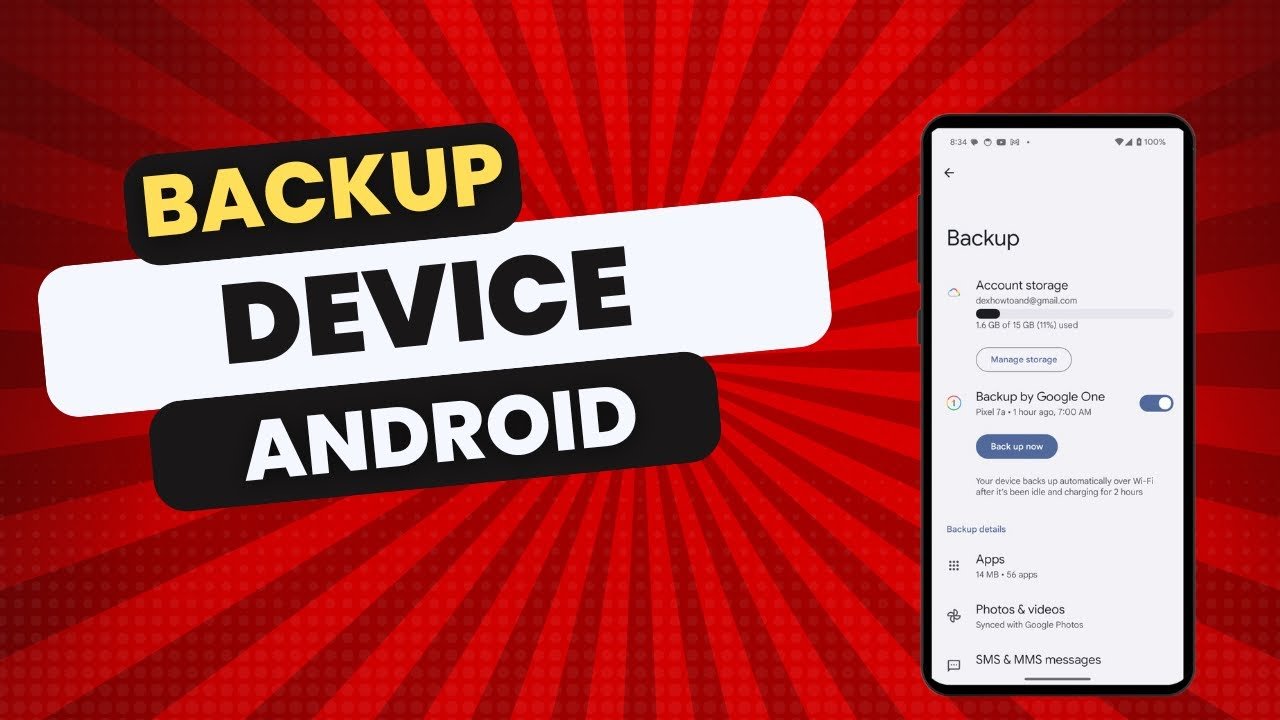
- Go to Google > Backup
- Turn on Backup by Google One
- Select your Google account
- Tap Back up now
📌 Pro Tip: Make sure you have enough Google Drive storage.
Advantages
- Automatic backup
- Encrypted data
- Easy restore
- No third-party apps required
Limitations
- Limited free storage (15GB)
- Photos/videos may consume space quickly
Method 2: Backup Photos & Videos Using Google Photos
Photos and videos take most storage, so backing them up separately is smart.
Steps
- Install Google Photos
- Sign in with Google account
- Enable Backup & Sync
- Choose upload quality (High quality or Original)
Why Google Photos Is Safe
- End-to-end encryption
- Easy access from any device
- Automatic background backup
Method 3: Backup Android Data to PC or Laptop (Offline Backup)
If you prefer offline and full control, backing up to a computer is a great option.
Using USB Cable (Manual Backup)
- Connect Android phone to PC
- Select File Transfer (MTP)
- Copy folders like:
- DCIM (photos)
- Download
- Documents
- Music
- Paste them on your computer
Pros
- No internet required
- No cloud risks
- Unlimited storage (depends on PC)
Cons
- Manual process
- No automatic updates
Method 4: Backup Using Manufacturer Tools (Samsung, Xiaomi, etc.)
Many brands provide their own backup tools.
Popular Manufacturer Backup Tools
- Samsung Smart Switch
- Xiaomi Cloud
- Huawei Backup
- Oppo Clone Phone
Benefits
- Full system backup
- Easy restore on same brand devices
- Secure servers
📌 Best if you plan to stay with the same brand.
Method 5: Backup Android Data Using Third-Party Apps
Some reliable third-party apps offer advanced features.
Best Android Backup Apps (Safe & Trusted)
- Titanium Backup (Root required)
- Super Backup & Restore
- Swift Backup
- Helium Backup
What They Can Back Up
- Apps + data
- SMS & call logs
- Calendar events
⚠️ Warning: Only download backup apps from the Google Play Store to avoid malware.
Method 6: Backup WhatsApp Data Safely
WhatsApp chats are important for most users.
Steps to Backup WhatsApp
- Open WhatsApp
- Go to Settings > Chats > Chat Backup
- Select Google account
- Tap Back Up
Tips for WhatsApp Backup
- Use Wi-Fi for large backups
- Enable end-to-end encrypted backups
- Backup regularly
Cloud Backup vs Local Backup (Comparison Table)
| Feature | Cloud Backup | Local Backup |
|---|---|---|
| Internet Required | Yes | No |
| Storage Limit | Limited | Unlimited |
| Automatic Backup | Yes | No |
| Security | High (Encrypted) | Depends on PC |
| Accessibility | Anywhere | Only local |
👉 Best Strategy: Use both cloud + local backup for maximum safety.
How to Keep Android Backup Data Secure
Backup is useless if it’s not secure. Follow these security tips:
- 🔑 Use strong Google account passwords
- 🔐 Enable two-factor authentication
- 🚫 Avoid unknown backup apps
- 📲 Keep phone OS updated
- 🧹 Delete old unused backups
Common Android Backup Mistakes to Avoid
❌ Not checking backup status
❌ Relying on one backup method
❌ Using mod or cracked backup apps
❌ Forgetting WhatsApp & media files
❌ Not testing restore option
How Often Should You Back Up Android Data?
- Daily: Contacts, WhatsApp, photos
- Weekly: Apps & settings
- Monthly: Full offline backup
Regular backups ensure zero data loss risk.
Best Backup Strategy for Android Users (Expert Recommendation)
For maximum safety, follow this 3-step strategy:
- ✅ Google Backup (Automatic)
- ✅ Google Photos for media
- ✅ Monthly PC backup
This method is secure, free, and reliable.
Frequently Asked Questions (FAQs)
Is Android backup safe?
Yes, Android backups are safe when using trusted services like Google and official apps.
Can I restore backup on a new phone?
Yes, sign in with the same Google account during setup.
Does backup consume internet data?
Yes, especially photos/videos. Use Wi-Fi.
Are third-party backup apps safe?
Only if downloaded from the Play Store with good reviews.
Final Words
Taking a backup of Android data safely is one of the smartest habits every smartphone user should adopt. With cloud services like Google Backup, offline PC storage, and secure apps, protecting your data has never been easier.
If you follow the methods shared in this guide, you’ll never have to worry about losing important files again. Start backing up today and keep your Android data safe, secure, and accessible.
For more Android tips, app reviews, and tech guides, visit regularly:
apk4r.org