
In today’s digital world, your Android phone stores everything — photos, contacts, WhatsApp chats, documents, app data, and even banking information. Losing this data can be stressful and sometimes irreversible.
That’s why this Auto Backup Android Guide is extremely important for every Android user in 2026.
Whether you accidentally reset your phone, lose it, or upgrade to a new device, automatic backup ensures your data stays safe. In this complete Auto Backup Android Guide, you will learn:
- What Android auto backup is
- How to enable automatic backup
- How to back up photos, contacts, apps, and messages
- Best backup methods in 2026
- Pro tips to secure your Android data
Let’s get started.
What Is Android Auto Backup?
Android Auto Backup is a built-in feature that automatically saves your important data to your Google account. This means your data is securely stored in the cloud and can be restored anytime.
When enabled, Android backs up:
- App data
- Call history
- Contacts
- Device settings
- SMS messages
- Wi-Fi passwords
- Google account data
Most Android phones use Google Drive as the primary cloud storage system for automatic backups.
This feature is completely free and available on almost all modern Android devices.
Why You Need This Auto Backup Android Guide in 2026
Many users think backups are not necessary — until they lose their data.
Here’s why automatic backup is essential:
1. Protection from Phone Loss or Theft
If your phone gets stolen or lost, your data remains safe in the cloud.
2. Safe Factory Reset
Planning to reset your device? Backup ensures you don’t lose anything important.
3. Easy Phone Switching
Buying a new Android phone? You can restore everything within minutes.
4. App Data Security
Your game progress, login data, and app settings are saved automatically.
This Auto Backup Android Guide helps you set up everything properly so you never lose important information.
How to Enable Auto Backup on Android (Step-by-Step)
Follow these simple steps to activate automatic backup:
Step 1: Open Settings
Go to your phone’s Settings.
Step 2: Tap on Google
Scroll down and tap Google.
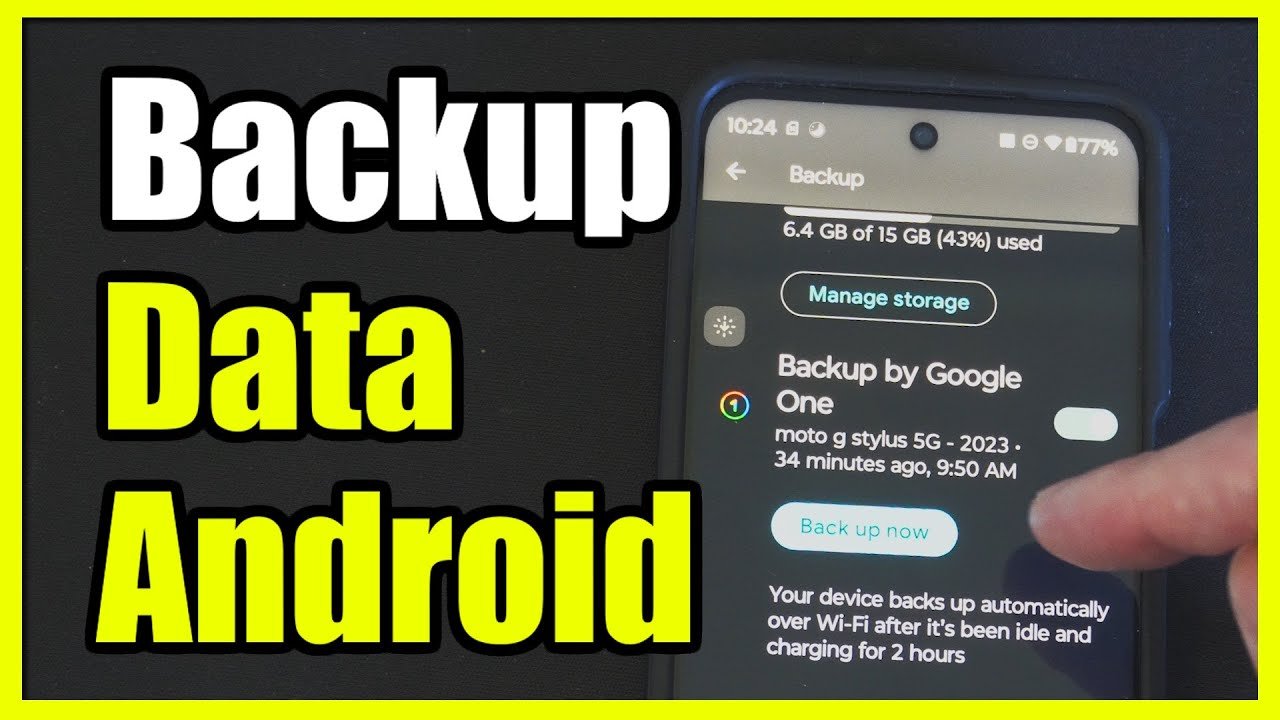
Step 3: Select Backup
Tap on Backup.
Step 4: Turn On Backup
Enable the toggle for Back up by Google One or Back up to Google Drive.
Your phone will now automatically back up data when:
- It is connected to Wi-Fi
- It is charging
- It is idle
That’s it! You’ve successfully enabled automatic backup using this Auto Backup Android Guide.
How to Check If Backup Is Working
To confirm your backup is active:
- Go to Settings > Google > Backup
- Check the Last backup time
- Make sure your Google account is selected
You can also manually tap Back up now to create an instant backup.
How to Auto Backup Photos and Videos
Photos and videos usually take the most storage space. Android uses Google Photos for media backup.
Enable Photo Backup:
- Open Google Photos
- Tap your profile picture
- Select Photos Settings
- Tap Backup
- Turn it ON
You can choose:
- High quality (storage saver)
- Original quality
This is one of the most important steps in this Auto Backup Android Guide, especially for users who store thousands of photos.
How to Backup WhatsApp Chats Automatically
WhatsApp chats are very important for many users.
WhatsApp allows automatic cloud backup using WhatsApp integrated with Google Drive.
Enable WhatsApp Backup:
- Open WhatsApp
- Tap Settings
- Select Chats
- Tap Chat Backup
- Choose Google account
- Set backup frequency (Daily recommended)
Now your chats will automatically back up to Google Drive.
How to Backup Contacts Automatically
Most Android contacts are synced with your Google account.
To check:
- Open Contacts app
- Tap Settings
- Select Google account sync
If enabled, your contacts are automatically saved online and restored anytime you log in to a new device.
How to Backup Apps and App Data
Android automatically backs up supported app data to Google Drive.
However, some apps require manual backup settings.
Examples:
- Banking apps
- Authenticator apps
- Games
For extra security, use in-app backup features if available.
This is a crucial part of this Auto Backup Android Guide, because many users forget about app-specific backups.
Best Android Backup Apps in 2026
Besides Google’s built-in backup, you can use third-party apps for extra security.
1. Google One
Official cloud backup tool by Google.
2. Samsung Smart Switch
For Samsung users only.
3. Solid Explorer + Cloud Storage
For advanced users who want manual control.
But for most users, the default Android backup system is enough.
How to Restore Backup on a New Android Phone
Restoring data is very easy.
When setting up a new Android phone:
- Connect to Wi-Fi
- Log in with your Google account
- Choose Restore from backup
- Select your latest backup
Within minutes, your apps, contacts, messages, and settings will be restored.
This is why following this Auto Backup Android Guide saves you hours of stress.
How Often Should You Backup?
Recommended frequency:
- Automatic daily backup (Best option)
- Manual backup before:
- Factory reset
- Major Android update
- Switching phones
Regular backups ensure maximum data protection.
Common Auto Backup Problems & Solutions
Problem 1: Backup Not Working
Solution:
- Check Wi-Fi connection
- Ensure storage space is available
- Update Google Play Services
Problem 2: Not Enough Google Storage
Google provides 15GB free storage.
Solution:
- Delete unnecessary files
- Upgrade storage plan
- Move media to external storage
Problem 3: Backup Stuck
Solution:
- Restart device
- Remove and re-add Google account
This Auto Backup Android Guide helps you fix common issues easily.
Pro Tips for Safe Android Backup
Here are expert tips to improve your backup security:
1. Use Strong Google Account Password
Protect your cloud backup with a secure password.
2. Enable Two-Factor Authentication
Add extra security to your Google account.
3. Backup Before Selling Phone
Always create a backup before factory reset.
4. Check Backup Monthly
Make sure backups are updating regularly.
Is Android Auto Backup Safe?
Yes, Android uses encrypted cloud storage to protect your data.
Google encrypts backup data both in transit and at rest.
However, your security also depends on your Google account protection.
Following this Auto Backup Android Guide ensures maximum safety.
Who Should Use This Auto Backup Android Guide?
This guide is perfect for:
- Students
- Business professionals
- Content creators
- Android gamers
- Social media users
- Anyone switching phones
If your phone contains important data, this Auto Backup Android Guide is for you.
Final Thoughts – Never Lose Your Android Data Again
Losing your phone data can be painful — but it’s completely preventable.
By following this complete Auto Backup Android Guide, you now know:
- How to enable automatic backup
- How to backup photos, chats, contacts, and apps
- How to restore data
- How to fix backup problems
In 2026, data protection is not optional — it’s necessary.
Make sure your Android auto backup is turned ON today.
For more practical Android tips and step-by-step tutorials, keep visiting Apk4r.org.